
☕ 80% Deployed. A Little Breathing Room. Naturally, I Started Another Project.
It was another one of those days. We had almost completed 80% of the on-prem deployments, and everything was going as usual. After I pushed the identity management portal live, I finally had a little free time. So — the regular things. Slow user onboarding, Intune management, Azure management, a bit of cloud hardening, and a few self-interest projects on the side. The kind that make users' lives better and IT life a little easier.
This post is about one of those side projects. It's called the Jump Host Dispatcher.
Don't get mad at me. I know the name sounds like something a vendor would sell you for a yearly subscription. Let me explain what it is and why I built it. Don't waste time — let's start.
🚪 Everything On-Prem Goes Through a Jump Host
As I mentioned in earlier posts, we're building our on-prem environment from scratch. To manage anything on-prem — other servers over RDP, management portals like Nutanix and Cohesity, the tape library, firewalls, network devices — we IT engineers first launch a jump host from our laptop. From the jump host, we reach everything else.
The jump hosts only accept connections from the corporate user network where our laptops live. That's by design. One controlled door in, instead of every laptop talking to every server.
Here's what I had to work with:
- 3 × Windows Server 2022 — direct RDP. The everyday workhorses.
- 1 × Windows 11, set up as a hybrid Azure Virtual Desktop host — purely my backdoor. If the three servers are unreachable, I still have an alternate way into on-prem. It's preview, so not fully reliable, but still very useful.
- No RDS CALs — budget isn't there right now. So each Windows Server allows the built-in 2 concurrent admin sessions, and that's it.
Three servers, two sessions each. Six usable seats.
🎲 Six Seats Were Enough. Finding One Wasn't.
Honestly, six sessions are enough for us. Our engineers don't live on the jump hosts. They come in, do a few tasks for 10 to 20 minutes, and leave. Mostly it's me and our network engineer who stay connected for long stretches. Sometimes I also need to give a vendor access for a configuration job.
So capacity wasn't the problem. Visibility was. Nobody knew which jump host had a free slot. The only way to find out was to launch them one by one and see which one let you in. Unreliable, slow, and a headache.
And I couldn't just assign a jump host to each engineer. Fifteen people, six slots, short random sessions — fixed assignment would leave some hosts idle while others refused people at the door.
I looked for options. Nothing satisfied me, and most of the good ones were paid. Our organisation also doesn't accept third-party tools that easily — and for something that sits in the path to every on-prem system, I don't blame them. That left one option: build it myself.
📐 Rules First: No New VM. Lightweight. One Click. No Passwords.
Compared to the identity management portal, this one was easy to design. I set myself a short list of rules before writing anything:
The result is a small client–server system written in PowerShell. A master runs on the first jump host, and the other two act as followers. Here's how it fits together:
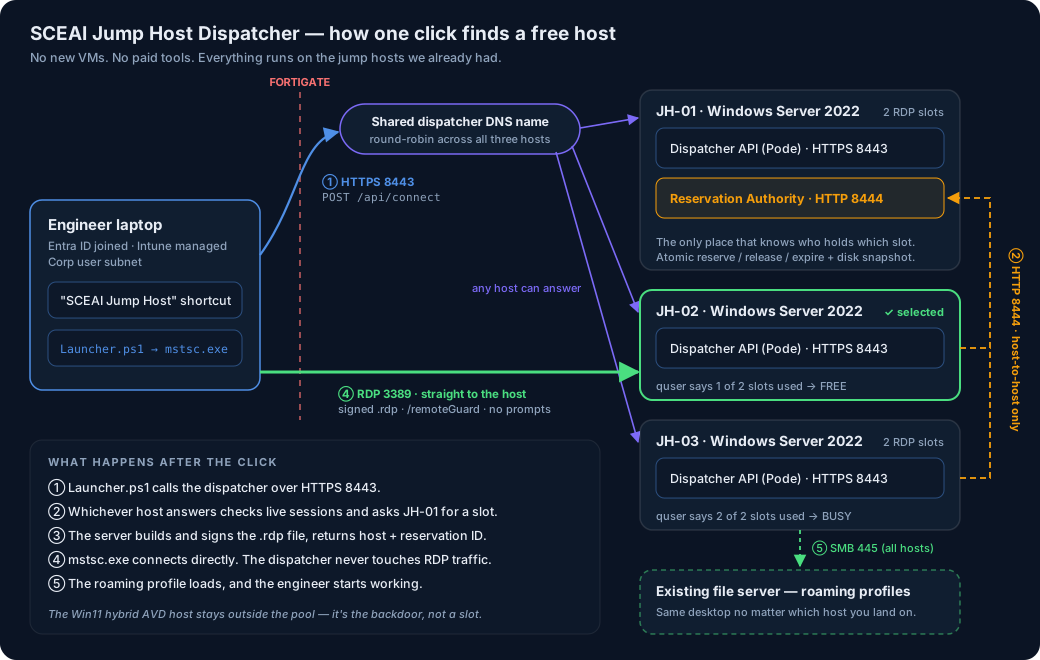
Launcher.ps1 sits behind the shortcut. It shows a small loading window, calls the dispatcher, receives a ready-made .rdp file, and launches mstsc.exe with it.
Dispatcher API — a Pode (pure PowerShell) HTTPS API on port 8443, running on all three hosts as a Scheduled Task. Endpoints: /api/health, /api/status, /api/connect, /api/release, /api/maintenance. A shared DNS name round-robins across all three.
Reservation Authority — runs only on the first host, on internal port 8444. The single source of truth for who holds which slot: atomic reserve, release and expire, with a disk snapshot so a restart doesn't forget anything. The other two hosts forward to it. The FortiGate only allows 8444 between the three jump hosts.
Roaming profiles on an existing file server share. Whichever host you get, your desktop looks the same — which is what makes "any free host" acceptable to the engineers.
How a host gets picked
There's no fancy agent pushing stats around. Each host checks its own sessions with the built-in quser and turns that into a simple state: FREE, BUSY, UNAVAILABLE or MAINTENANCE.
Then the Reservation Authority picks the least recently used host that's under capacity. Never "always try host 1 first" — that just piles everyone onto one box. When all six slots are taken, the API returns a clear NO_HOST_AVAILABLE ("All jump hosts are currently in use") instead of forcing a third session onto a full server.
⚡ It Worked in Two Days. Then It Met the Real Environment.
I had a working version within two days. The pure logic — race conditions, reservation timeouts, LRU selection — tested perfectly against a mocked API on my side. Then I deployed the real thing to the real hosts, and a whole list of small, quiet problems showed up in one go:
Every Pode route runs in its own runspace. Config variables set in the setup block simply didn't exist inside the routes. Fixed with Pode's shared Set-PodeState / Get-PodeState store. (Yes — I hit the same lesson in the identity portal. Apparently I needed it twice.)
Kerberos.NET couldn't load System.Memory under both PowerShell 7 and 5.1. Fixed with an explicit Add-Type preload from Pode's own libs folder before importing the module.
powershell.exe is not pwsh. The Scheduled Task was quietly running Windows PowerShell 5.1. Pointed it at the real pwsh.exe path, checked on each host — never assumed.
No console under Task Scheduler. Start-PodeServer needed -DisableConsoleInput to survive.
RemoteSigned blocked every copied script carrying a "downloaded" mark — including every imported .psm1, not just the entry script. A manual -Bypass test passed. The real task failed.
Pode's Kerberos auth hands you a ClaimsPrincipal. Reading .Name instead of .Identity.Name silently rejected every request, no matter which group you were in.
Annoying, but normal. Each one had a clear cause and a clear fix. What came next was not normal.
🤬 One Click. Three Popups. I Hated My Own Project.
The first time I triggered the client from my laptop, it did connect me to a free jump host. Success, technically. But before it connected, it threw three prompts at me. A normal manual RDP connection only asks once. My "one-click, seamless" tool was asking three times.
Ahh. I hated my project at that moment.
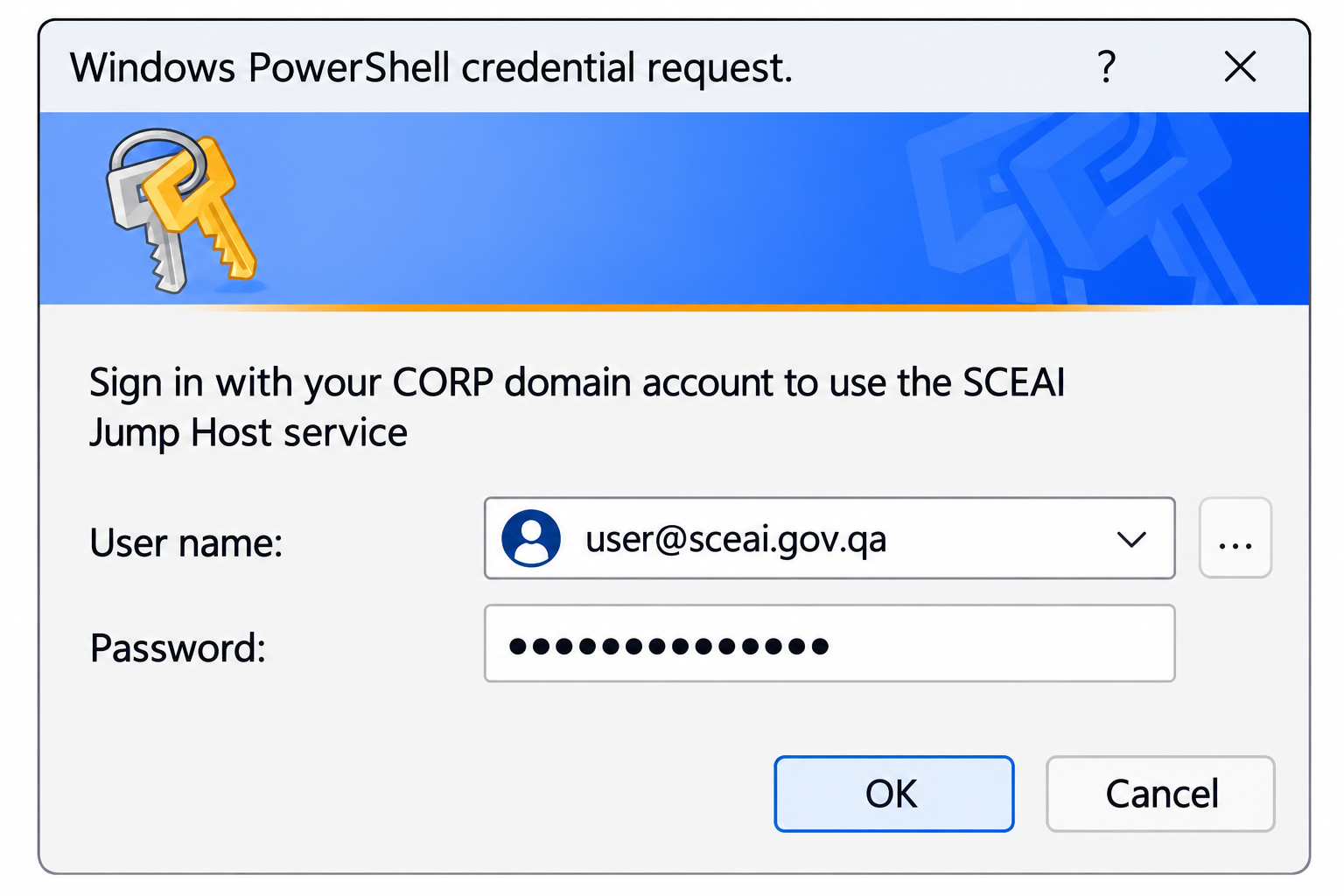
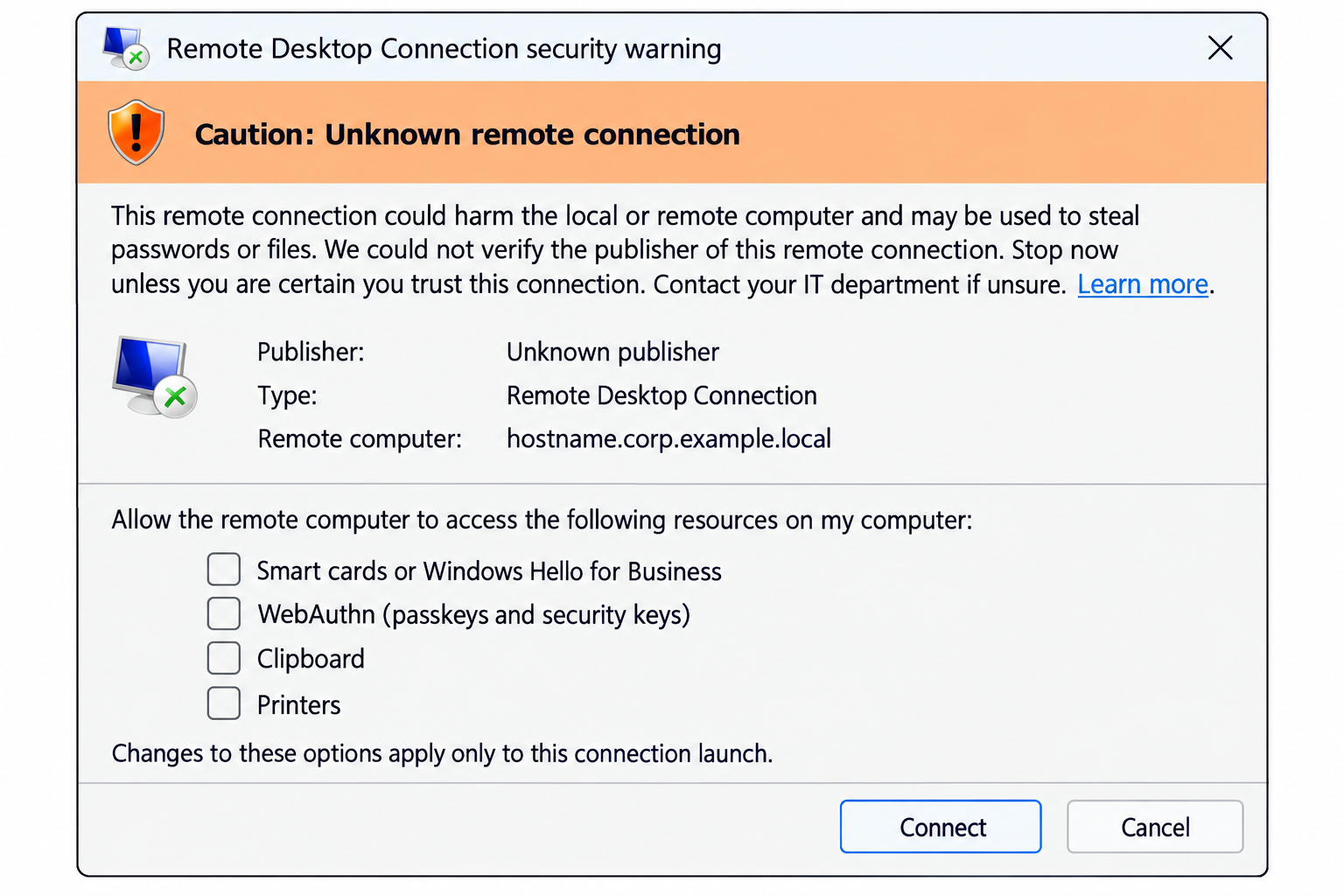
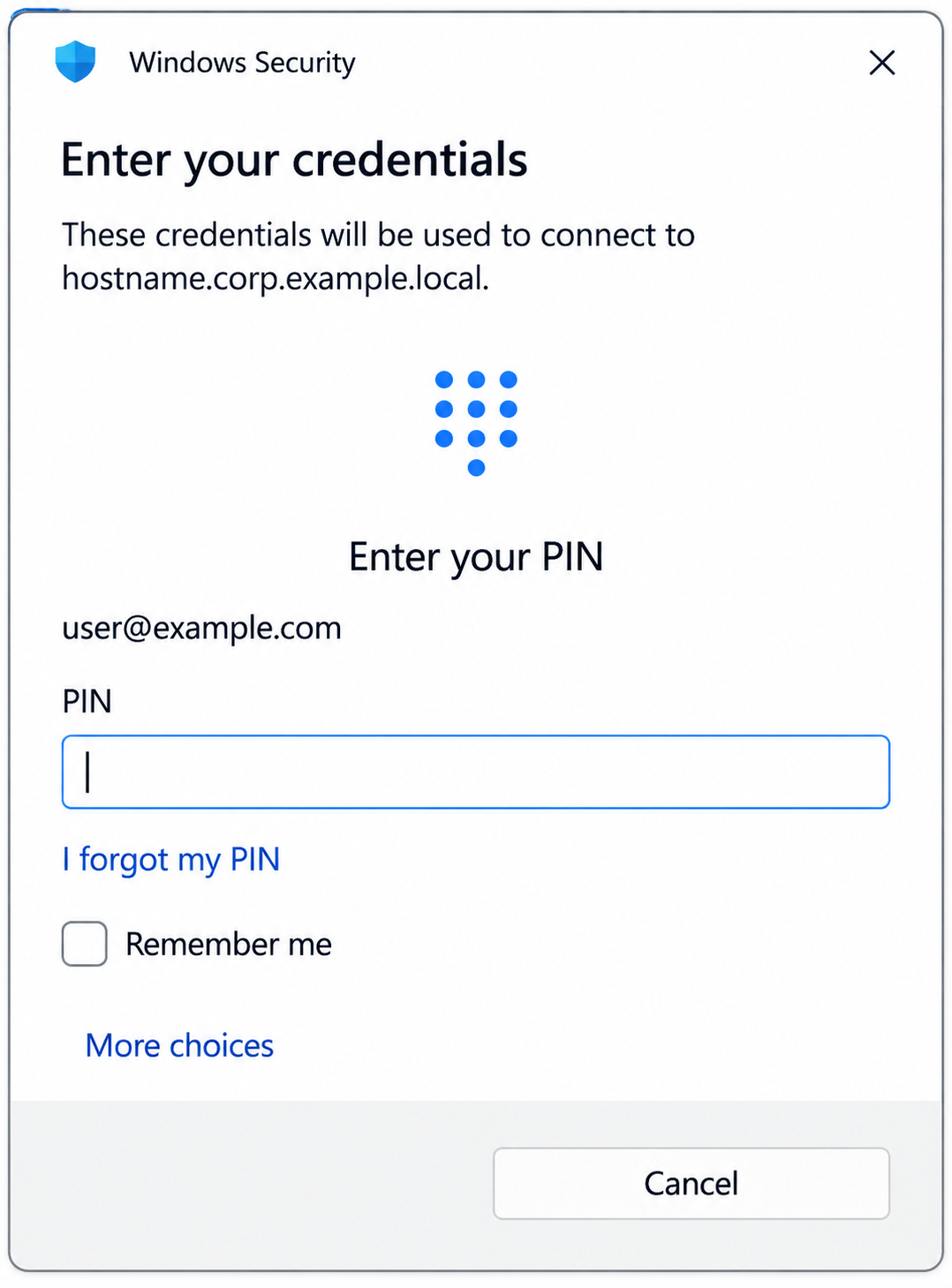
Three popups, three completely different root causes. Here's the short version before the long one:
| Popup | Root cause | Fix |
|---|---|---|
| ① Legacy credential box | Entra-joined laptops can't get a Kerberos ticket for the dispatcher API, so it fell back to Basic auth — with no memory. | Cache the credential in Windows Credential Manager. Only the first-ever launch asks. |
| ② Unknown publisher | The server-generated .rdp file wasn't signed — and later, the client trusted the wrong registry value. | Code-signing certificate, server-side signing, and TrustedCertThumbprints pushed via Intune. |
| ③ PIN / password | Hybrid Kerberos from a non-domain laptop stalled while validating the KDC's certificate — the CRL wasn't reachable. | Open laptop → CRL point on TCP 80, plus Remote Credential Guard on both sides. |
🔐 The Credential Box: Kerberos Said No, So Basic Auth Said "Again?"
The dispatcher API was designed to authenticate with plain on-prem Kerberos. A dedicated service account holds the API's HTTP SPN, and a keytab exported with ktpass sits on all three hosts. On a domain-joined machine, that's silent and seamless.
Our laptops aren't domain-joined. They're Entra ID joined and Intune managed. When I tested from one, klist showed zero cached tickets even after the failed attempt. The laptop simply couldn't get a ticket for that on-prem HTTP SPN.
So I added an HTTP Basic fallback next to Kerberos — never replacing it. The server validates the username and password against AD with PrincipalContext.ValidateCredentials, which works no matter how the client is joined. It's HTTPS-only, so the credential is never on the wire in clear text.
That fixed authentication. It also created Popup 1, because now the launcher asked for a password every time.
advapi32.dll P/Invoke — no extra module to ship.Every user is an IT engineer, so typing it once on first launch is absolutely fine. Popup 1: gone.
📜 The Publisher Warning: Signed, Trusted, and Still Complaining
The server creates a new .rdp file every time someone launches. Tracing that flow, the cause was obvious: nobody was signing it. Windows shows "Unknown publisher" for any unsigned .rdp file. That's standard behaviour, not a bug.
The quick workaround was an Intune policy to allow .rdp files from unknown publishers. That hides the warning. It doesn't make the file trustworthy. I wasn't happy shipping that for something that opens a door into every on-prem system.
The proper fix had three parts:
Issue a dedicated code-signing certificate for the service, used only for signing RDP files.
Generate the .rdp on the server, not the client. Once a file is signed, its content is locked. If the client swapped an FQDN for an IP afterwards, the signature breaks. So the whole file had to be built and signed server-side.
Fail closed. Any signing error releases the reservation and returns a clear error. It never quietly falls back to an unsigned file.
I deployed it. Signed file, valid certificate, trusted chain. And the warning... was still there.
We tried multiple workarounds. Nothing helped. The final fix was telling the client, in the registry, exactly which publisher thumbprint to trust. And this is where it got interesting — because I had already been setting a thumbprint in the registry for a while. It just wasn't doing anything.
mstsc.exe never reads it. No error, no event — just silently ignored.mstsc.exe's real registry reads in Procmon during a live connection.One wrong word in a value name. The fix "looked applied" for an entire troubleshooting session while doing absolutely nothing. Procmon doesn't guess — it shows you exactly which key and value the process asks for.
Popup 2: gone. Properly gone, not hidden.
🧠 The PIN Prompt: Where I Almost Lost My Mind Over Kerberos
Now the ultimate issue. SSO into the RDP session itself. Ahh, bro — I was mad at this stage. Troubleshooting at its peak.
Let me tell you something first. I knew I wasn't doing normal Kerberos here. In a classic setup, a domain-joined laptop talks to a domain controller in the same domain, and everything just works. Our laptops are Entra ID joined, not AD joined. For those devices to use Kerberos against on-prem resources, the flow is completely different:
We never got past step three. No service ticket. I kept troubleshooting in different ways, and none of them told me why. Finally, I decided to stop guessing and go with Wireshark.
I installed Wireshark in three places at once: my laptop (the client), the master jump host, and the domain controller. Then I captured a launch. And there it was. My laptop was trying to reach the CA.
After the laptop gets its full TGT, the direction changes. Because the laptop and the domain controller are not in the same domain, the laptop can't just trust the DC. It has to validate the KDC's certificate first, and that includes a revocation check. The certificate points to a CRL distribution point. The CRL is served over plain HTTP on port 80. And port 80 from the user subnet to that server had never been opened.
No answer from the CRL. No trust in the KDC. No service ticket. So Windows did the only thing it could — fell back and asked for my PIN.
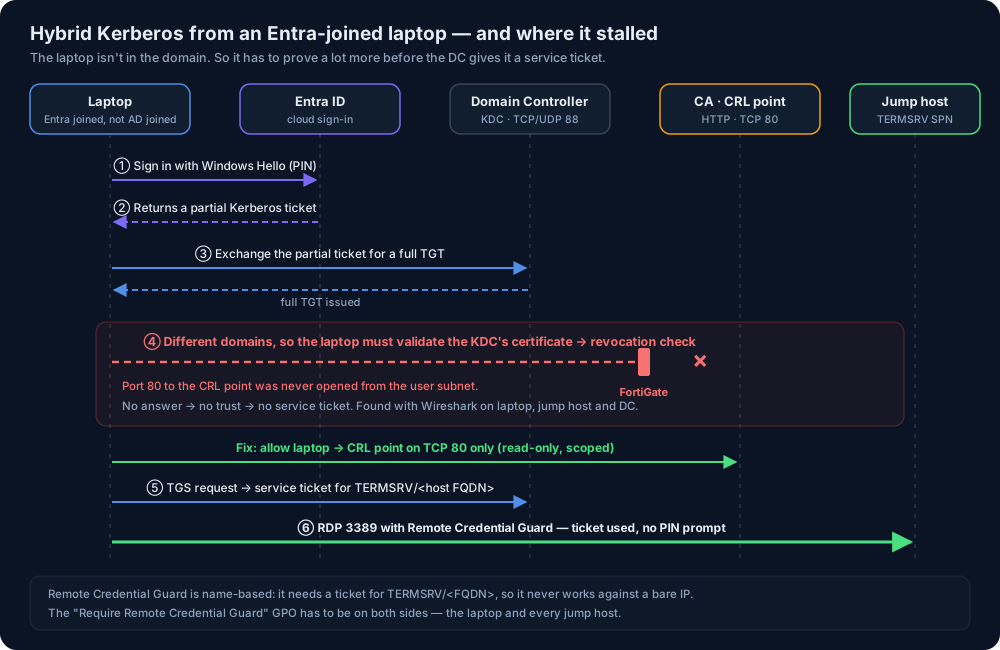
I asked our network team to allow traffic from my laptop to the CA server's CRL point. Only port 80, only the CRL, read-only. We don't want port 80 open wide anywhere, and we didn't need it to be.
The RDP side: Remote Credential Guard
The ticket gets into the RDP session through Windows Defender Remote Credential Guard — mstsc.exe /remoteGuard. It sends Kerberos requests back to the client instead of handing your credentials to the server. It needs the "Restrict delegation of credentials to remote servers" GPO (Require Remote Credential Guard) on both the laptop and every jump host. Miss either side and you just get a normal prompt — which looks exactly like "not configured yet." Fun.
/remoteGuard. Remote Credential Guard is name-based — it needs a ticket for TERMSRV/<FQDN>, so it can't work against a bare IP. Over our VPN, I'd added an IP fallback for hosts whose names wouldn't resolve. A laptop with the GPO, hitting a host by IP, fell through to a Windows Hello PIN prompt — then failed with "local smart card and Windows Hello for Business devices must be made available to remote session." Rule since then: the GPO and the launcher's useRemoteGuard setting are rolled out together, per laptop. Never one without the other.📦 Intune Said "Success." It Installed Nothing.
After successful testing, I bundled the launcher as an Intune Win32 app (.intunewin with an Install.ps1 wrapper), plus the registry settings, and pushed it to the IT team. Install copies the launcher to Program Files and creates the Desktop and Start Menu shortcuts for all users.
Of course, the rollout had its own two layers of trouble.
A version-blind detection rule. The rule was "does Launcher.ps1 exist?" Fine for the first install. After that, any device with any version reported "already installed" and never got updates. Fix: stamp a version in the registry on every install and detect against that string. Bump it every release.
A false "Success." Install.ps1 returned exit code 0, but the version key wasn't there — so the next detection pass flipped the app to Error (-2016345060). The script was dying partway through a Copy-Item, and powershell.exe -File doesn't reliably turn an unhandled terminating error into a non-zero exit code. Intune only sees exit codes, so it had no idea.
The script writes its own log because Intune's logs won't help you here. AgentExecutor.log records the exit code of a Win32 app's script — not what the script actually printed or where it died.
🎯 One Click. Sit Back. Watch It Connect.
So, to wrap up the three villains: the legacy password box was solved with Windows Credential Manager, the publisher warning with a code-signing certificate, server-side signing and the right registry value, and the PIN prompt by making hybrid Kerberos actually able to finish.
A few engineers told me it's very useful. Honestly, I already knew it would be. The real proof is quieter than that: before, when someone's RDP file pointed at a full host, they came straight to me. Now I don't hear anything from anyone. They open the SCEAI Jump Host app and start working on on-prem resources.
What I'm taking away from this one
- A wrong name fails silently far more often than it errors.
CertificateThumbprintsthrew nothing. Neither did.Namevs.Identity.Name. Only direct evidence — Procmon, Wireshark, checking the real file on the real host — showed the truth. - Hybrid identity breaks "Kerberos just works." An Entra-joined laptop is not a domain-joined laptop, even with the same user. Plan for the fallback from day one.
- Certificates have dependencies people forget. CRL reachability is part of authentication. If the client can't check revocation, it can't trust the KDC.
- A GPO's reach is wider than the feature it was written for. Test the other paths it touches, not just the one you wanted.
- Exit code 0 doesn't mean it worked. Exit 1 on purpose, and make the script log itself.
- "I copied the file" isn't verified until you check the destination. A stale config on a host bit me more than once during this build.
- Fail closed for anything security-related. No signature, no connection — never a silent unsigned fallback.
Small tools can remove big friction. This isn't a huge platform. It's a few PowerShell scripts, a free web framework, and the jump hosts we already had. But it turned "try every host until one lets you in, then call Shibu" into one click. The design took a day. Making it truly seamless took Wireshark, Procmon, a code-signing certificate and a firewall rule — and that's the part worth writing about.
"Getting it to connect took two days. Getting it to connect without asking anything took everything after that."
💬 Discussion
Fighting hybrid Kerberos, RDP signing, or your own jump host queue? Drop it below.